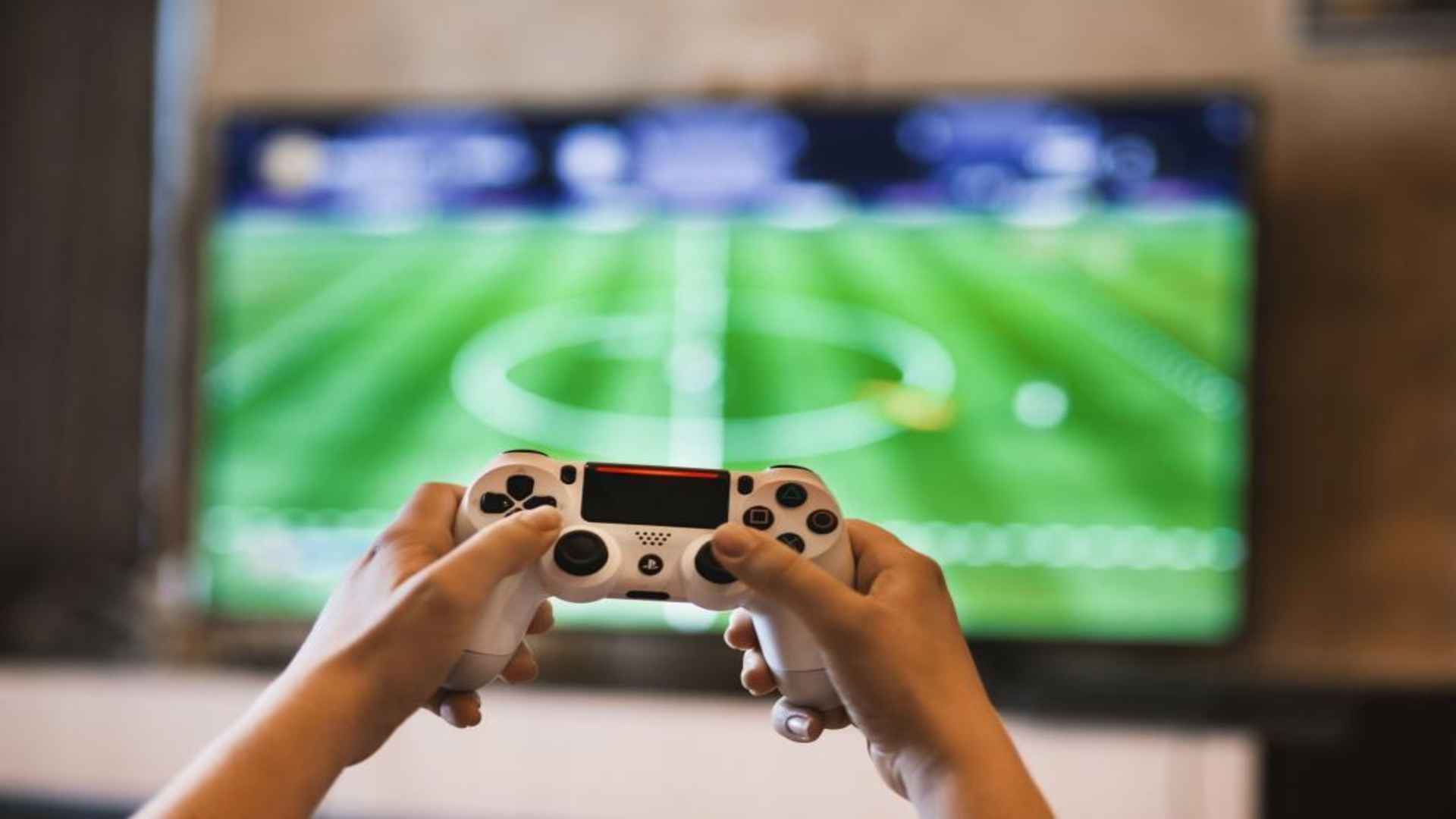
Reconnecting a PlayStation 4 DualShock gamepad to your console is usually a seamless process, but occasional system glitches or hardware desynchronization can prevent the device from pairing. Whether you recently used your controller on a PC, mobile phone, or secondary console, establishing a fresh connection is simple once you follow the proper steps. Understanding the primary pairing techniques ensures that you can resolve connectivity issues quickly without losing valuable gaming time.
Reconnecting via USB Cable Connection
The most reliable method to pair your DualShock pad back to your console is by utilizing a standard micro-USB data cable. Plug one end of the cable directly into the front port of the PlayStation 4 and connect the other end into your controller socket. Once attached securely, press the central PS button on the gamepad to trigger the synchronization sequence.
It is important to ensure that the micro-USB cord you use is capable of transmitting data rather than just delivering power. Many cheap charging cables lack internal data lines, which prevents the console from recognizing the device interface. Once the light bar on top turns a solid color, your connection is fully established and ready for use.
Utilizing Bluetooth Discovery Mode
If you prefer a wireless approach or lack an immediate data cable, you can sync your controller through the console settings menu. Navigate to the Settings option on your dashboard, open the Devices menu, and select Bluetooth Devices using a working controller or remote app. This brings up a list of available wireless peripherals nearby.
To activate discovery mode on your unlinked DualShock gamepad, hold down the Share button and PS button simultaneously for several seconds. The light bar will begin flashing rapidly in a double-blink pattern to indicate it is actively broadcasting its signal. Select the gamepad when it appears on your television screen to complete the wireless pairing procedure.
Performing a Full Controller Hardware Reset
Persistent connection failures often point to residual memory bugs stored inside the controller hardware itself. To clear these temporary errors, turn off your console completely and flip the gamepad over to locate the small reset pinhole near the L2 shoulder button. Insert a straightened paperclip into the hole and hold the internal button down for roughly five seconds.
After releasing the reset button, connect the gamepad back to the console using your verified micro-USB data cord. Power on the console using the physical power button on the front panel rather than the controller. Once the system finishes booting up, press the PS button to re-establish a clean synchronization link.
Troubleshooting Common Signal Interference
Wireless signal disruption can also cause your DualShock 4 pad to drop its connection or fail to pair entirely. Nearby devices such as Wi-Fi routers, smart TVs, and Bluetooth headphones can emit radio frequencies that crowd the 2.4 GHz spectrum used by the console. Moving electronic devices slightly further away from your gaming setup can resolve these persistent wireless conflicts.
Additionally, check your system software regularly to ensure your console operates on the latest official update. Outdated firmware can occasionally introduce unexpected accessory communication bugs across connected peripherals. Taking care of your equipment and keeping components updated ensures stable controller performance for every gaming session.